IT

Category: Bez kategorii

  • How to open Desktop Icon Settings without activation on Windows 11?

    Sometimes we need a shortcut to This PC or a user folder, e.g. testing the system on a virtual machine, and the system without activation blocks the personalization.

    This is a very simple and quick way to set a This PC and others shortcuts on the desktop without activating the system.

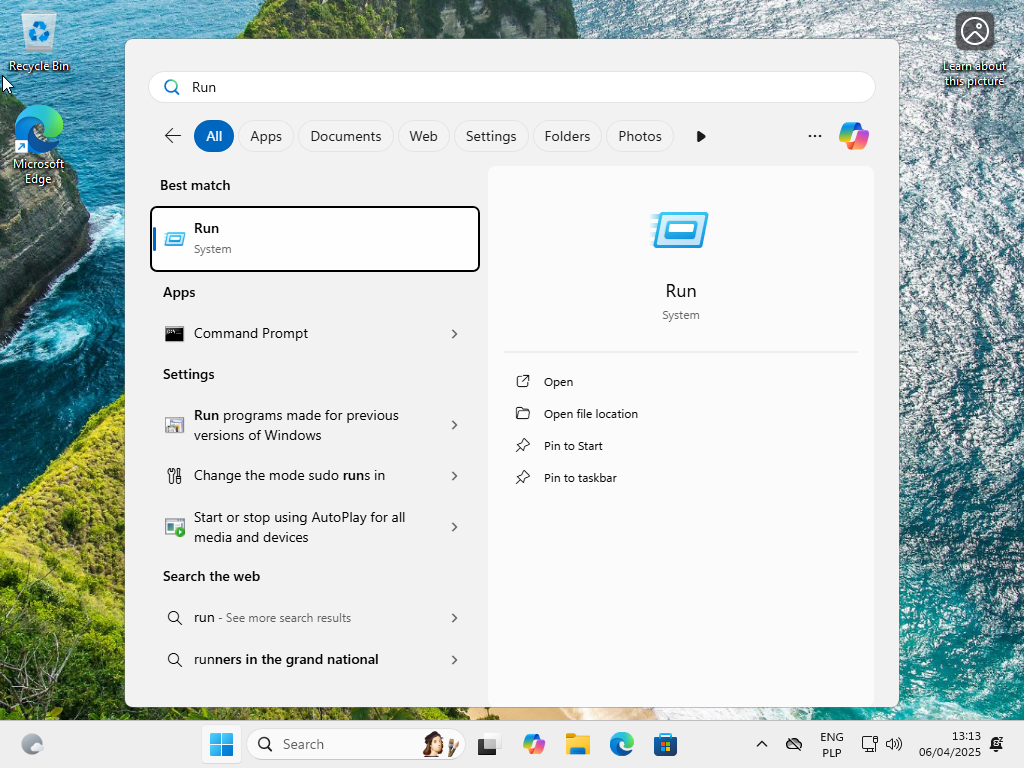
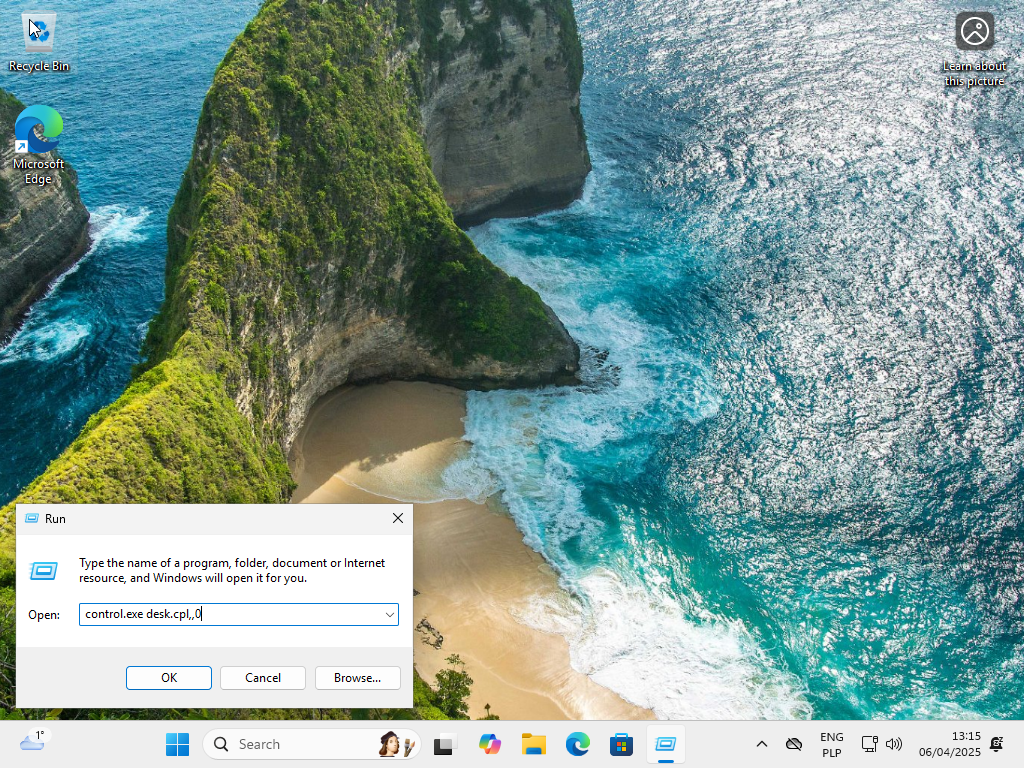
    Step 1: Open the Run command.

    Open the Start menu, type run and press Enter key. Or you can press the Windows key and the R key together.
    Step 2: Run command to open the setting window.

    Type the following command: control.exe desk.cpl,,0 and press Enter.
    Step 3: Enable dektop icons.

    Enable preferred desktop icons and click Apply.
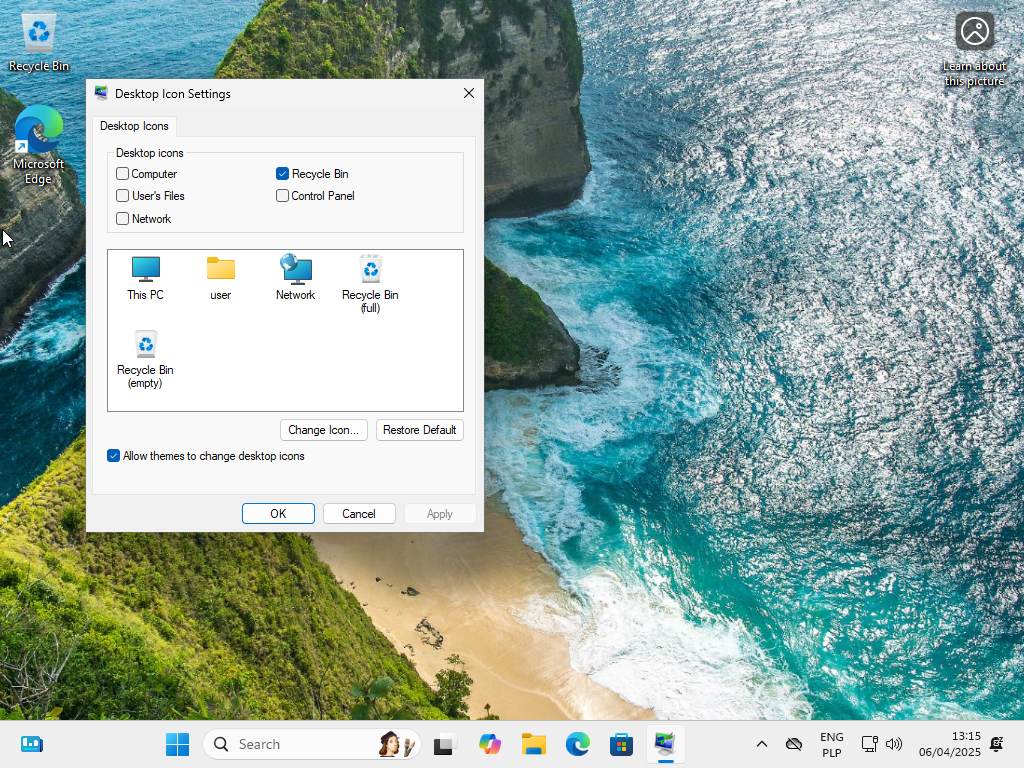
    Changes on the desktop are visible immediately after applying.

  • How to update Windows PowerShell using WinGet.

    Step 1: Check the current version.

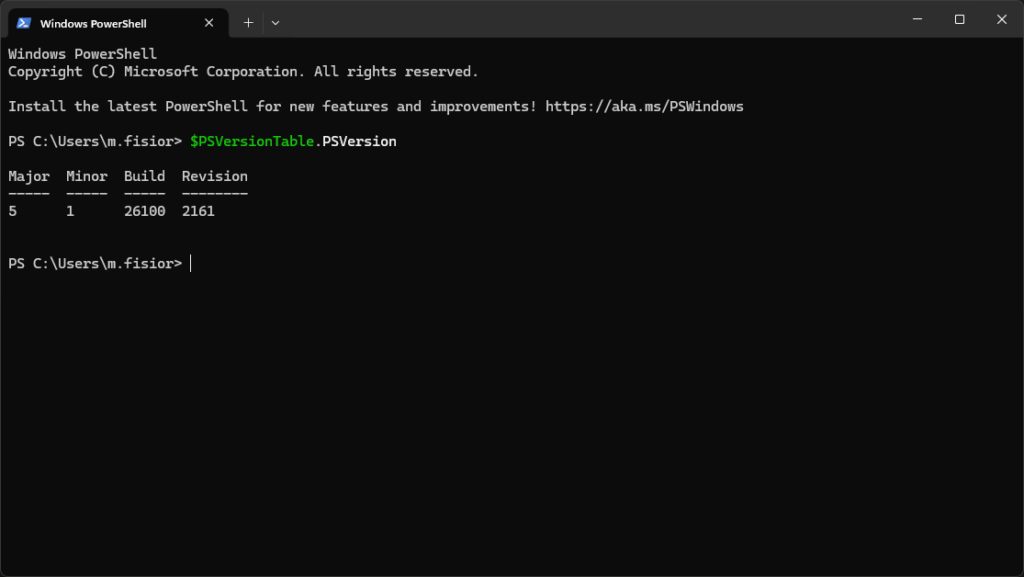
    Open Microsoft PowerShell and use the $PSVersionTable.PSVersion command to specify what version we are using.

    Step 2: Looking for a newer version PowerShell using WinGet.

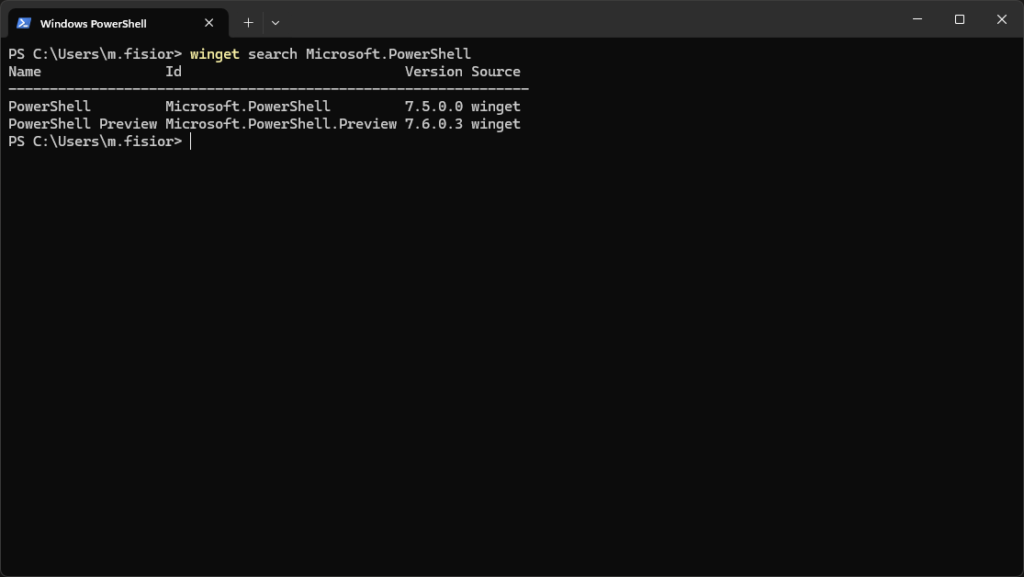
    Find the latest version of PowerShell using the Windows WinGet Package Manager by typing the command winget search Microsoft.PowerShell

    Step 3: installing a newer version PowerShell using WinGet.

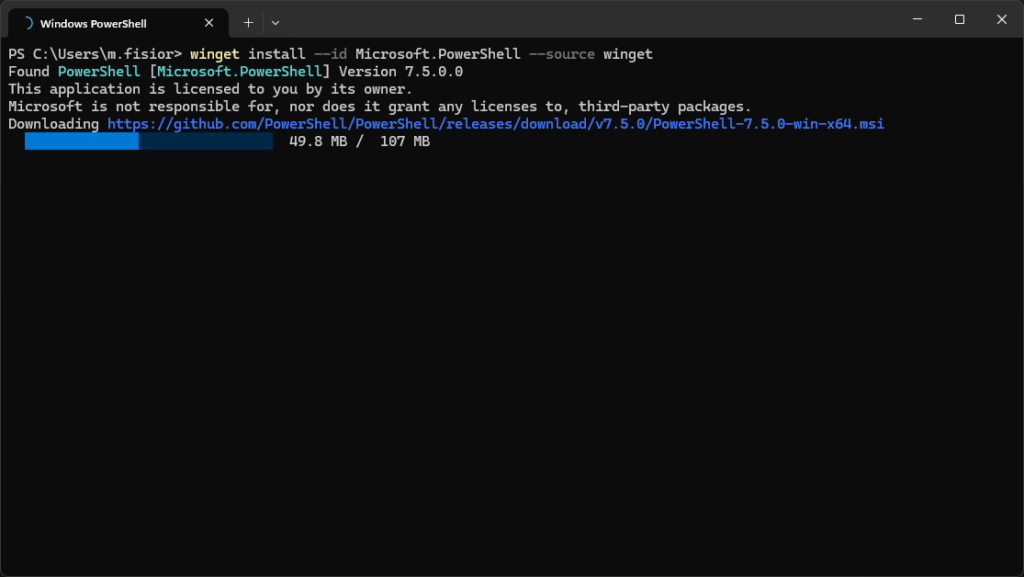
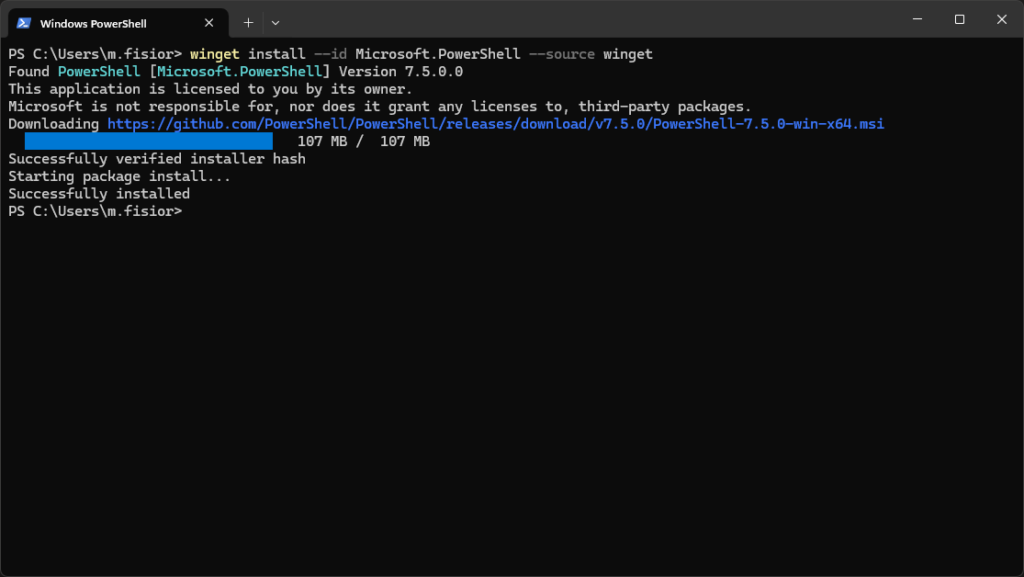
    Enter the command winget install --id Microsoft.PowerShell --source winget and after confirmation the installation will start:

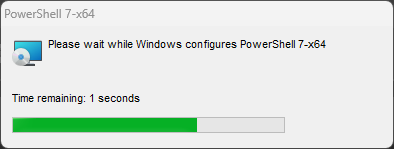
    During installation, a window may pop up telling you to make changes to your computer and an installer window:

    After a successful installation, we will receive confirmation feedback from WinGet:

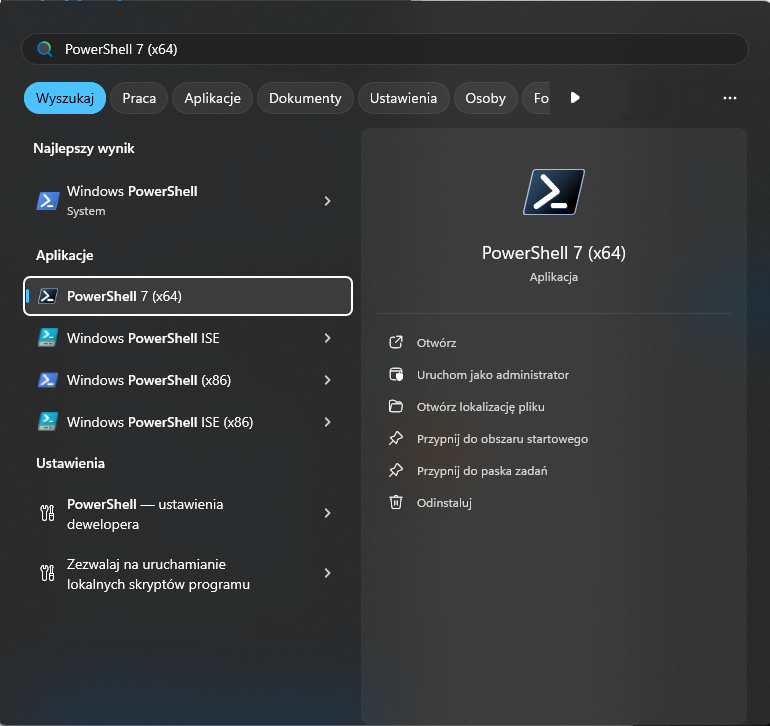
    Since PowerShell version 7 it installs separately, from now it is visible as a separate app in the start menu:

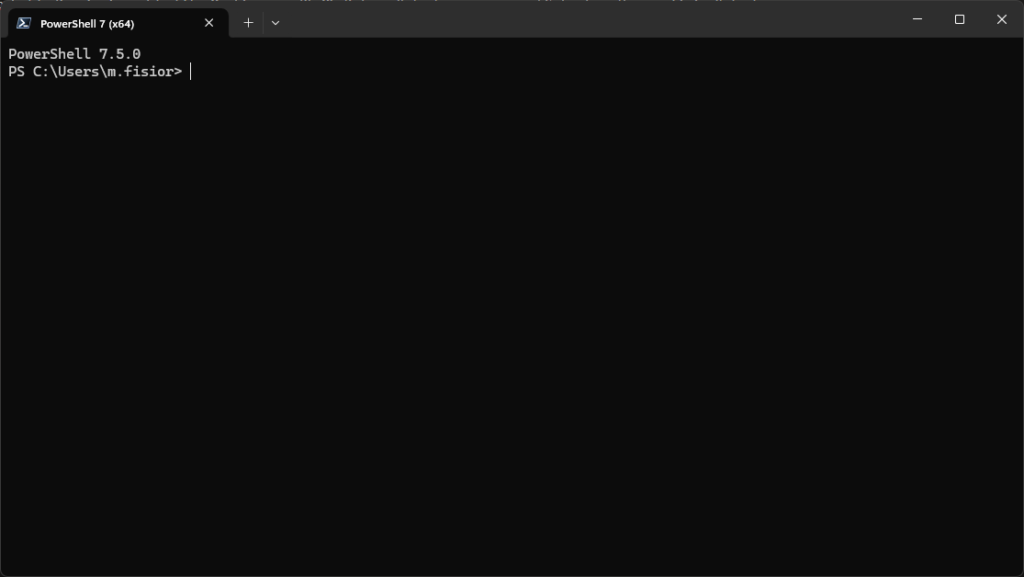
    After launch, we should also see the version of PowerShell in use: